


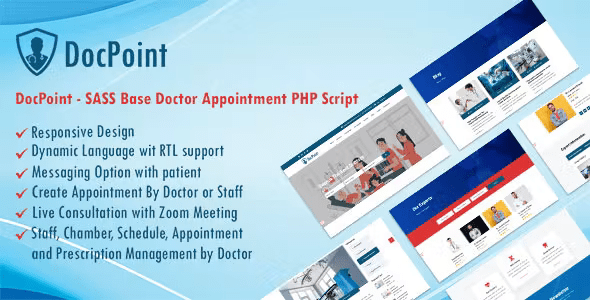
DocPoint – Doctor Appointment System with Subscription (SAAS) With Lifetime Update.
$14.90
| Features | Values |
|---|---|
| Version | v1.1.0 |
| Last Update | 4 May 2024 |
| Premium Features | Yes |
| Instant Installation Support | 24 Hrs. |
| Scanned By Virus Total | ✅ |
| Live Preview | 100% Working |
13
Items sold in last 3 minutes
360
People watching this product now!
Description
DocPoint is a SAAS-based system for managing doctors, chambers, staff, appointments, prescriptions, and patients. Patients can freely register, log in, and schedule appointments, while admins can create unlimited subscription plans. Upon subscribing, doctors gain access to features such as chamber creation, staff management, scheduling, appointment booking, and prescription generation. Developed using Laravel PHP framework, the system ensures robust security with protections against SQL injection, XSS attacks, and CSRF attacks.
Key Features
- Laravel 10 is used as language
- Bootstrap 4.5 is used in design
- One click installation.
- User friendly codes and easy to navigate
- Eye-catching and fully responsive design
- Strong security of codes
- Search doctor by location, department and doctor name
- Subscription verify with email
- Google analytics
- Facebook pixel
- Google reCAPTCHA
- Message system between doctor and patient
- Zoom Meeting
- Maintenance module
- RTL Supported
- Tawk live chat
- Dynamic language option
- Dynamic Color change option
- SEO Optimized and SEO friendly URL
- Manage Pricing Package
🌟100% Genuine Guarantee And Malware Free Code.
⚡Note: Please Avoid Nulled And GPL PHP Scripts.
Reviews (0)
Only logged in customers who have purchased this product may leave a review.
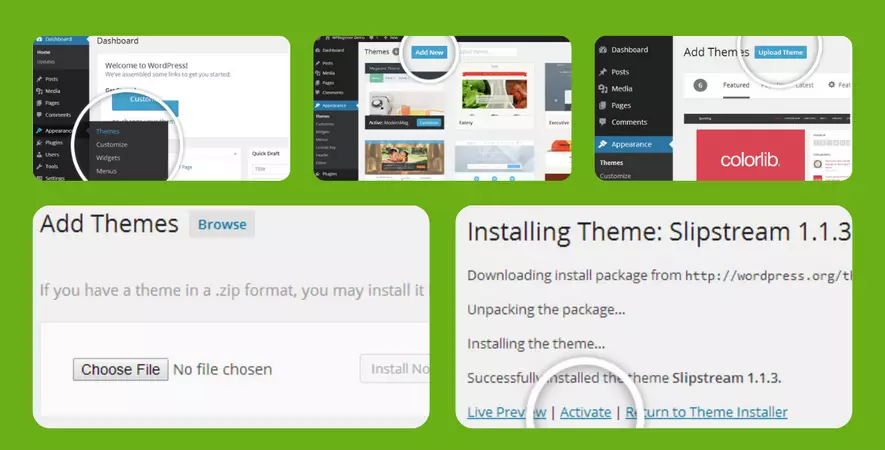
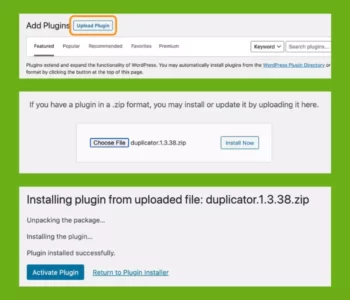
Installation Process
Certification





Reviews
There are no reviews yet.